



![Kong Interview Preparation Guide [2025]](https://www.devopstraininginstitute.com/blog/uploads/images/202509/image_430x256_68dbb95326997.jpg)



12 Daily Docker Commands You Must Practice in 2025
Master Docker with these 12 essential daily commands every DevOps engineer must practice in 2025. From docker ps and docker logs to docker exec, prune, and volume management. Clear explanations, real-world examples, and tips to boost productivity and troubleshooting skills.
Introduction
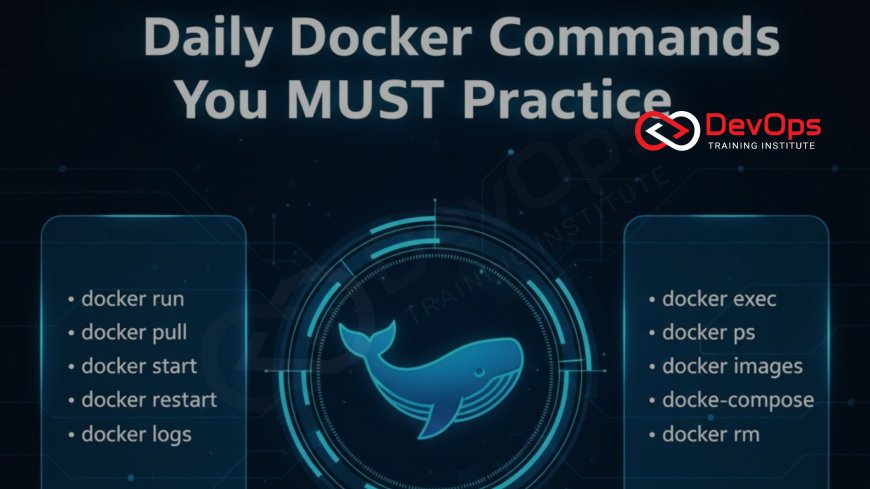
Docker is the backbone of modern application development and deployment in 2025, powering everything from local testing to production Kubernetes clusters. While graphical tools and orchestrators handle much of the heavy lifting, true mastery comes from comfort with the command line. These 12 daily Docker commands are the ones professional DevOps engineers use multiple times every day to inspect, debug, clean, and manage containers efficiently. Practicing them regularly builds muscle memory that saves hours during incidents and makes you far more productive. This guide explains each command with practical examples, common flags, and real-world scenarios you will encounter. Whether you are preparing for interviews, onboarding new team members, or sharpening your own skills, committing these to memory will make you a confident Docker power user in no time.
1. docker ps – Your Container Dashboard
The docker ps command is the first thing most engineers type every morning. It lists running containers with key details like ID, image, status, and ports.
- docker ps -a shows all containers, including stopped ones
- docker ps -q returns only container IDs for scripting
- docker ps --format "{{.Names}}" lists just names
- Use with grep to filter: docker ps | grep nginx
- Combine with watch for live monitoring
Pro Tip
Add alias dps='docker ps --format "table {{.ID}}\t{{.Names}}\t{{.Status}}\t{{.Ports}}"' to your shell for a cleaner, more readable output every time.
2. docker logs – Debugging Superpower
When something goes wrong, docker logs is your window into what the application inside the container is actually doing.
- docker logs -f container_name for live tailing (like tail -f)
- docker logs --since="2025-01-01" to filter by time
- docker logs --tail 100 to show only last 100 lines
- Use with grep: docker logs container | grep ERROR
- --timestamps adds readable dates to each line
Common Use Case
During an outage, tail logs from multiple containers simultaneously using tools like stern or multitail for Kubernetes environments.
3. docker exec – Interactive Container Access
docker exec lets you run commands inside a running container, perfect for debugging without SSH or rebuilding images.
- docker exec -it container bash for interactive shell
- docker exec container cat /app/config.json to inspect files
- docker exec -u root container apt update for emergency fixes
- Use -e VAR=value to set environment variables
- Combine with sh when bash is not available
Security Note
Avoid leaving debug shells open in production. Use one-off commands and exit immediately to reduce risk surface.
4. docker run – Launching Containers Right
docker run is the most fundamental command, but pros use it with flags that make containers production-ready from day one.
- --rm automatically removes container on exit
- --name myapp gives a predictable name
- -d runs detached (background)
- --restart unless-stopped for automatic recovery
- -p 8080:80 for port mapping
- --user 1000:1000 to avoid running as root
Best Practice Example
docker run -d --name web --restart unless-stopped -p 80:80 --user 1000 nginx:latest creates a secure, resilient web server.
5. docker build – Crafting Efficient Images
Building images efficiently is a daily task. The right flags and Dockerfile practices separate amateurs from professionals.
- --no-cache forces full rebuild when needed
- --tag myimage:v1.2.3 for immutable tagging
- --file ./path/Dockerfile for non-standard locations
- --build-arg KEY=value for parameterized builds
- Use .dockerignore to exclude unnecessary files
Pro Tip
Always use multi-stage builds and pin base image versions. Never use :latest in production Dockerfiles.
6. docker volume – Managing Persistent Data
Containers are ephemeral, but data often needs to persist. Docker volumes are the correct way to handle this.
- docker volume create mydata creates named volume
- docker volume ls lists all volumes
- docker volume inspect mydata shows mount details
- docker volume prune removes unused volumes
- -v mydata:/app/data in run command mounts it
Common Mistake to Avoid
Never use bind mounts (-v /host/path:/container/path) for data in production. Named volumes are more portable and secure.
7. docker network – Isolating Container Communication
Understanding Docker networking prevents many mysterious "can't connect" issues in development and production.
- docker network create mynet for custom networks
- docker network ls shows all networks
- docker network inspect bridge examines default
- --network mynet when running containers
- bridge, host, and none are built-in types
Real-World Application
Use custom bridge networks to allow containers to communicate by name while isolating them from host network.
8. docker prune – Keeping Your System Clean
Docker resources accumulate quickly. Regular pruning prevents disk space issues and keeps your environment healthy.
- docker system prune -a removes all unused resources
- docker image prune -a cleans dangling images
- docker volume prune removes unused volumes
- docker container prune stops and removes stopped containers
- --force skips confirmation prompts
Automation Tip
Add docker system prune -f to a weekly cron job or CI/CD cleanup step to maintain a lean Docker host automatically.
9. docker inspect – Deep Container Intelligence
docker inspect returns complete JSON metadata about containers, images, volumes, or networks. It's invaluable for troubleshooting.
- docker inspect container_name for full config
- docker inspect -f '{{.NetworkSettings.IPAddress}}' container
- Use with jq for pretty printing and filtering
- Works on images, volumes, networks too
Power User Example
docker inspect -f '{{range .NetworkSettings.Networks}}{{.IPAddress}}{{end}}' mycontainer extracts IP from any network.
10. docker stats – Real-Time Resource Monitoring
docker stats provides live CPU, memory, network, and disk usage for running containers.
- docker stats for all containers
- docker stats container1 container2 for specific ones
- --no-stream for one-time snapshot
- --format for custom output
When to Use It
During performance issues or load testing, docker stats helps identify resource hogs quickly before diving into application logs.
Bonus: 11. docker compose up/down – Orchestrating Multi-Container Apps
While not a single command, docker compose is used daily for local development and testing.
- docker compose up -d for detached mode
- docker compose down --volumes to clean everything
- docker compose logs -f for multi-service tailing
- docker compose ps for status overview
Essential for Development
Every modern project uses compose.yaml for consistent local environments matching production services.
Bonus: 12. docker system df – Disk Usage Insight
docker system df shows how much space images, containers, volumes, and build cache consume.
- Identifies space hogs quickly
- Run before and after pruning to see savings
- -v for verbose breakdown by type
Daily Maintenance
Make it a habit to check docker system df weekly on development machines and production hosts.
Essential Docker Commands Quick Reference Table
| Command | Purpose | Key Flags | Daily Use Case |
|---|---|---|---|
| docker ps | List containers | -a, --format | Check running services |
| docker logs | View output | -f, --tail | Debug errors |
| docker exec | Run inside container | -it, -u | Inspect files |
| docker run | Start container | -d, --restart | Launch services |
| docker prune | Clean resources | -a, system | Free disk space |
Conclusion
These 12 Docker commands form the daily toolkit of every effective DevOps engineer in 2025. From quickly checking container status with docker ps to diving deep with docker exec and logs, mastering them turns complex container environments into something manageable and predictable. Practice one command per day on a personal project or sandbox environment, and within two weeks you will navigate Docker with confidence that impresses colleagues and interviewers alike. Combine these with good Dockerfile habits and orchestration tools like Kubernetes, and you will build systems that are reliable, secure, and easy to maintain. Start today—the difference between struggling with containers and commanding them is just consistent practice with these essential commands.
Frequently Asked Questions
How often should I run docker prune?
Weekly on development machines, daily or automated on production hosts.
Is docker stats accurate?
Yes, it shows real-time cgroup usage, very reliable for quick checks.
Can I alias docker commands?
Absolutely. Many pros alias dps, dl, de for faster typing.
What if docker exec can't find bash?
Use sh instead: docker exec -it container sh
Should I always use --rm with docker run?
For testing and one-off tasks yes, for services no.
How do I see container IP address?
docker inspect -f '{{range .NetworkSettings.Networks}}{{.IPAddress}}{{end}}' container
Is docker system df useful?
Yes, especially before and after cleanup to see savings.
Can I tail logs from multiple containers?
Use tools like stern (for Kubernetes) or write a simple bash loop.
What is the difference between docker stop and docker kill?
Stop sends SIGTERM for graceful shutdown, kill sends SIGKILL immediately.
Should I use docker compose in production?
For small setups yes, but most move to Kubernetes or Swarm for scale.
How do I copy files from container to host?
docker cp container:/path/file.txt ./local/path
Is it safe to run docker commands as root?
On dedicated hosts yes, but use Docker rootless mode when possible.
What command shows image layers?
docker history image_name
How do I limit container resources?
docker run --memory="512m" --cpus="1.5"
Where can I find more advanced Docker commands?
The official Docker docs and "Docker Deep Dive" book are excellent resources.
What's Your Reaction?
 Like
0
Like
0
 Dislike
0
Dislike
0
 Love
0
Love
0
 Funny
0
Funny
0
 Angry
0
Angry
0
 Sad
0
Sad
0
 Wow
0
Wow
0


![100+ Azure DevOps Interview Questions and Answers [Updated 2025]](https://www.devopstraininginstitute.com/blog/uploads/images/202509/image_140x98_68c40aa9a3834.jpg)





![Future Scope of DevOps Careers in Pune [Updated 2025]](https://www.devopstraininginstitute.com/blog/uploads/images/202510/image_140x98_68e3a84652312.jpg)