
















![Kong Interview Preparation Guide [2025]](https://www.devopstraininginstitute.com/blog/uploads/images/202509/image_430x256_68dbb95326997.jpg)












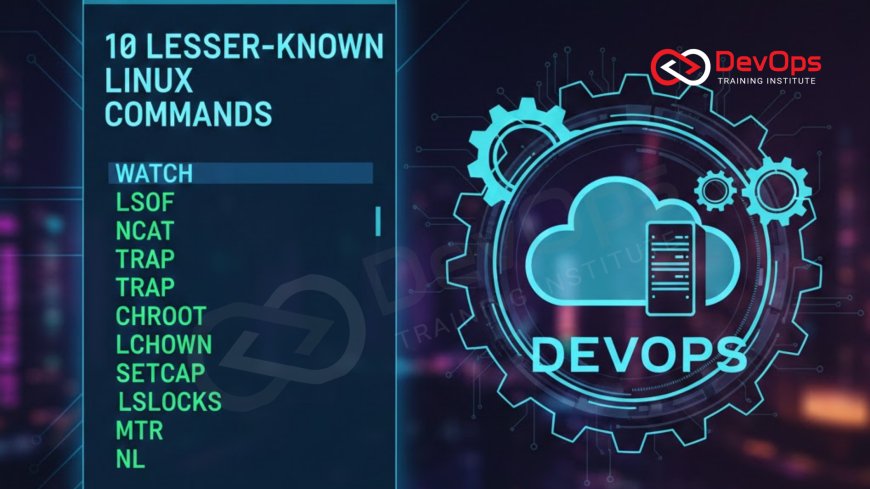
10 Least-Known Linux Commands Useful for DevOps
Unlock the potential of your engineering workflow by exploring the ten least known Linux commands that are incredibly useful for modern DevOps teams in twenty twenty six. While most professionals are familiar with standard utilities, mastering obscure tools like mtr, strace, and lsof can provide a significant advantage during complex system troubleshooting and performance optimization tasks. This detailed guide provides beginner friendly explanations and practical examples of how these rare commands can streamline your operations, enhance security, and improve overall system reliability in a cloud native environment. Stay ahead of the curve and expand your technical toolkit with these essential yet underrated Linux gems today.
Introduction to Obscure Linux Utilities
In the fast paced world of modern software development, most DevOps engineers rely on a handful of well known commands like ls, cd, and grep. However, the Linux operating system is home to hundreds of specialized utilities that remain largely unknown to the average practitioner. These lesser known commands are often designed for specific, high stakes scenarios such as debugging a failing production server or tracing a mysterious network bottleneck. Learning these tools is not just about expanding your vocabulary; it is about having the right instrument for the job when standard methods fail to provide the necessary insights.
As we move into twenty twenty six, the complexity of our systems continues to grow, making deep system visibility more important than ever. The commands discussed in this guide are chosen for their ability to provide clarity where others provide confusion. By integrating these tools into your daily routine, you can move from basic administration to expert level system mastery. Whether you are managing thousands of containers or a single critical database, these utilities will help you diagnose issues faster and with greater precision. It is time to look beyond the surface of the terminal and discover the hidden power of the Linux command line.
Real Time Network Tracing with mtr
When a service is slow, the first instinct for many is to use ping or traceroute. While these are useful, they only provide a static snapshot of the network path. The mtr command combines the functionality of both into a single, real time diagnostic tool. It continuously sends packets and tracks the response time and packet loss at every hop between your server and the destination. This allows you to see exactly where a network delay is occurring and how it fluctuates over time, which is invaluable for identifying intermittent connectivity issues that a single traceroute might miss.
For DevOps engineers managing global cloud infrastructure, mtr is a vital tool for verifying continuous synchronization across different regions. It provides a visual representation of network health that is easy to interpret even under pressure. You can use it to prove to an ISP or cloud provider that a specific router in their network is dropping packets, saving hours of finger pointing during a critical outage. By regularly running mtr, you can establish a baseline for your network performance and detect subtle degradations before they impact your end users. It is an essential part of any modern network troubleshooting toolkit.
Deep Dive Debugging with strace
Have you ever had a program crash with a vague error message, or worse, no message at all? The strace command is your window into what is happening under the hood. It intercepts and records the system calls made by a process and the signals it receives. By running a failing application through strace, you can see exactly which file it tried to open, which network connection failed, or which permission was denied. This level of detail allows you to bypass the application's own error handling and see the raw interactions with the Linux kernel.
In a containerized world, strace is particularly useful for debugging why a container is failing to start or behaving unexpectedly in a production environment. You can attach strace to a running process to see its activity in real time without stopping it. This makes it an ideal companion for incident handling where you need to diagnose a live issue quickly. While the output can be dense, learning to filter for specific system calls like open, read, or connect will give you superpowers when it comes to resolving the most stubborn software bugs. It is the ultimate diagnostic tool for the serious systems engineer.
Finding Hidden Files with lsof
The name lsof stands for list open files, but its utility goes far beyond simple file listing. In Linux, almost everything is treated as a file, including network sockets, pipes, and hardware devices. The lsof command allows you to see every file that is currently being accessed by every process on the system. This is incredibly helpful when you are trying to unmount a disk and get a "device busy" error, or when you need to know which process is listening on a specific network port. It provides a complete map of how your system's resources are being utilized at any given moment.
DevOps professionals often use lsof to investigate security incidents or unexpected resource leaks. For instance, if you suspect a process is leaking memory or file descriptors, lsof can show you exactly what it has open. You can filter the results by user, process ID, or even by a specific network protocol. This versatility makes it a cornerstone of cultural change toward more transparent and observable operations. By mastering lsof, you gain the ability to answer complex questions about system state that would be nearly impossible to figure out otherwise. It is a fundamental tool for maintaining the health and security of your Linux servers.
Summary of Essential Obscure Commands
| Command | DevOps Use Case | Key Benefit | Difficulty |
|---|---|---|---|
| mtr | Network Latency Analysis | Real-time path tracking | Easy |
| strace | Application Debugging | Exposes system calls | Hard |
| lsof | Resource Conflict Check | Lists all open files/ports | Medium |
| pidstat | Process Performance | Granular CPU/IO stats | Medium |
| nc (netcat) | Port Scanning / Data Pipe | Swiss-army knife for networking | Easy |
Monitoring Performance with pidstat and sar
While the top command is great for a quick look at system load, it doesn't provide the granular data needed for deep performance tuning. The pidstat command allows you to monitor individual tasks managed by the Linux kernel. It can report on CPU usage, memory utilization, and even stack utilization for specific processes. This is perfect for identifying which thread in a multi threaded application is consuming the most resources. By using pidstat, you can pinpoint performance bottlenecks with high precision, ensuring that your architecture patterns are performing as efficiently as possible in production.
For historical data, the sar command (System Activity Reporter) is the gold standard. It collects, reports, and saves system activity information over time. This allows you to look back at what happened on a server during a midnight traffic spike without having to be awake at the time. You can query sar for CPU, memory, network, and disk statistics from any point in the past where the collector was running. This long term view is critical for capacity planning and for identifying slow burning issues that only appear over several days or weeks. Together, pidstat and sar provide a complete performance monitoring solution for any Linux environment.
Advanced Networking with Netcat and Dig
Netcat, often invoked as nc, is frequently described as the Swiss army knife of networking. It can read and write data across network connections using the TCP or UDP protocols. DevOps engineers use it for everything from checking if a remote port is open to transferring files between servers when other methods are unavailable. It can even be used to create a simple web server or a backdoor for testing purposes. Its simplicity and power make it an essential tool for release strategies where you need to verify network connectivity between microservices during a deployment.
Similarly, the dig command is the go to tool for DNS related troubleshooting. Unlike the older nslookup, dig provides a much more detailed and technically accurate response from DNS servers. It allows you to query specific records like MX, TXT, or CNAME and see the exact response headers. This is vital when you are troubleshooting a failed domain migration or a misconfigured mail server. Understanding the nuances of DNS is a key part of cloud engineering, and dig is the best tool for the job. Using these networking tools ensures that your cluster states remain reachable and correctly configured across the internet.
Pro Tips for Terminal Productivity
- Use aliases: Create short nicknames for your most used long commands in your bashrc or zshrc file to save time.
- Master pipes: Learn to chain commands together using the vertical bar to process data through multiple filters and tools.
- Journalctl: Use this command to view logs from the systemd journal, including filtering by service name or time range for faster searching.
- Dmesg: Always check the kernel ring buffer with dmesg after a hardware failure or a process crash to see system level error messages.
- Xargs: Use xargs to build and execute command lines from standard input, which is great for performing actions on a list of files.
- Watch: Run any command repeatedly at a set interval with watch to monitor changes in real time on your terminal screen.
- Secret Scanning: Integrate secret scanning tools into your terminal workflow to ensure no credentials are exposed in your command history or scripts.
Productivity in the terminal is about more than just speed; it is about accuracy and reducing the chance of manual errors. By utilizing admission controllers and automated checks within your environment, you can ensure that your terminal actions adhere to your organization's security policies. It is also important to know when to use specialized runtimes like containerd for better performance in your local development cycle. These pro tips, combined with the obscure commands mentioned earlier, will make you a much more effective and confident DevOps professional.
Conclusion: Elevating Your Linux Mastery
In conclusion, the journey to becoming an expert DevOps engineer involves a constant exploration of the tools and technologies that power our digital world. The ten least known Linux commands we have explored today provide a powerful starting point for anyone looking to deepen their technical knowledge. From the real time network visibility of mtr to the deep system call tracing of strace, these utilities offer insights that standard tools simply cannot match. By embracing these obscure gems, you are not just learning new commands; you are adopting a more analytical and effective approach to system operations.
As you continue to build your skills, remember that the best way to learn is through practice and curiosity. Don't wait for an emergency to try out these commands; use them in your development environment today to see how they work. The future of the industry is leaning toward AI augmented devops, but the fundamental knowledge of how the Linux kernel and networking operate will always be the foundation of a successful career. By combining these classic Linux skills with modern automation and continuous verification, you will be well prepared to handle whatever technical challenges the future may bring.
Frequently Asked Questions
What is the mtr command used for in DevOps?
The mtr command is used for real time network diagnostics, combining ping and traceroute to identify latency and packet loss along a network path.
How does strace help with debugging application failures?
It records all system calls made by a process, allowing you to see exactly where an application is failing to interact with the kernel.
What information does the lsof command provide?
It lists all open files and network ports on the system, showing which processes are accessing specific resources at any given moment in time.
Why should I use pidstat instead of the top command?
It provides much more granular performance statistics for individual processes, making it easier to identify specific resource bottlenecks in complex applications.
What is the netcat command commonly called?
It is often called the Swiss army knife of networking due to its ability to handle almost any type of network connection and data transfer.
Is the sar command better for real time or historical monitoring?
The sar command is primarily used for historical monitoring as it collects and saves system activity data over long periods for later analysis.
What is the difference between dig and nslookup?
The dig command provides more technical detail and follows modern DNS standards more closely than the older and more basic nslookup utility.
How can I find out why my server is slow using these commands?
You can use a combination of mtr for network, sar for historical trends, and pidstat for real time process monitoring to find the cause.
Are these obscure commands available on all Linux distributions?
Most are included by default or can be easily installed using standard package managers like apt or yum on any modern Linux system.
Can I use strace on a production server safely?
Yes, but with caution, as it can slow down the process it is attached to, so it is best used for short periods during troubleshooting.
What is the benefit of the watch command for DevOps?
It allows you to monitor the output of any command in real time, which is perfect for watching a service restart or a disk fill up.
How do I see kernel error messages in Linux?
You should use the dmesg command to view the kernel ring buffer, which contains important hardware and system level error logs and messages.
What does the xargs command do?
It takes items from standard input and uses them as arguments for another command, making it very powerful for batch processing many files at once.
Why is it important to learn these lesser known commands?
They provide deeper insights and more specialized functionality that standard commands lack, which is essential for solving complex and rare technical issues.
How can I remember all these different Linux commands?
The best way is to use them regularly in your daily work and to create a personal cheat sheet for the commands you find most helpful.
What's Your Reaction?
 Like
0
Like
0
 Dislike
0
Dislike
0
 Love
0
Love
0
 Funny
0
Funny
0
 Angry
0
Angry
0
 Sad
0
Sad
0
 Wow
0
Wow
0



![100+ Azure DevOps Interview Questions and Answers [Updated 2025]](https://www.devopstraininginstitute.com/blog/uploads/images/202509/image_140x98_68c40aa9a3834.jpg)






![Future Scope of DevOps Careers in Pune [Updated 2025]](https://www.devopstraininginstitute.com/blog/uploads/images/202510/image_140x98_68e3a84652312.jpg)