













![Kong Interview Preparation Guide [2025]](https://www.devopstraininginstitute.com/blog/uploads/images/202509/image_430x256_68dbb95326997.jpg)








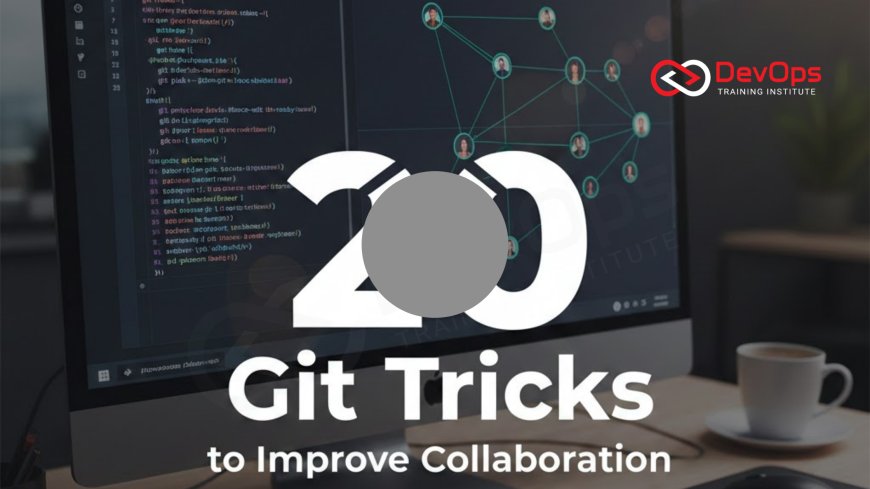
20 Git Tricks to Improve Collaboration
Unlock the full potential of version control with twenty essential Git tricks designed to enhance collaboration and streamline workflows for modern engineering teams. This comprehensive guide provides clear, beginner friendly insights into advanced merging techniques, commit history management, and repository optimization strategies that prevent common conflicts and technical debt. Learn how to maintain a clean and professional code history while improving communication across distributed teams. Whether you are working on open source projects or large enterprise systems, these professional tips will empower your DevOps team to work more efficiently and ship higher quality software in the competitive tech landscape of twenty twenty six.
Introduction to Collaborative Version Control
Git has become the universal language of software development, acting as the foundation for how teams build, review, and ship code together. However, simply knowing how to commit and push is no longer enough for high performing engineering teams in twenty twenty six. Mastering Git requires understanding the subtle tricks and workflows that prevent "merge hell" and keep the project history clean and readable for everyone involved. When used effectively, Git is more than just a backup tool; it is a powerful collaboration platform that enables hundreds of developers to work on the same codebase simultaneously without stepping on each other's toes.
Improving collaboration through Git involves a mix of technical commands and cultural discipline. It is about writing better commit messages, using branches strategically, and knowing how to fix mistakes without disrupting the work of your colleagues. As we explore these twenty tricks, you will see how each one is designed to reduce friction and improve the clarity of your technical contributions. Whether you are an individual contributor or a team lead, these strategies will help you build a more resilient and transparent development process that scales alongside your organization's growth and complexity.
Mastering the Art of Interactive Rebase
One of the most powerful tools for maintaining a clean history is the interactive rebase. This trick allows you to go back in time and modify your recent commits before they are shared with the rest of the team. You can use it to squash multiple small "work in progress" commits into a single, logical feature commit, or to reword messages for better clarity. By presenting a polished and organized history during the code review process, you make it much easier for your peers to understand your changes and provide meaningful feedback without being distracted by minor iterations or typos.
Interactive rebasing also helps in keeping your local branch up to date with the main development line. Instead of creating messy merge commits that clutter the history graph, you can rebase your changes on top of the latest master branch. This results in a linear history that is much easier to navigate and debug during an incident handling scenario. It is a key skill for any engineer who wants to maintain a professional standard in their repositories. Mastering this workflow ensures that your continuous synchronization with the team's main codebase is always smooth and logical.
Utilizing Git Stash for Context Switching
In a fast paced environment, you are often asked to switch tasks or fix a critical bug while you are in the middle of a complex feature. Git stash is the perfect trick for these moments, allowing you to quickly save your uncommitted changes in a temporary area so you can switch to a clean branch. Once the urgent task is finished, you can "pop" your stashed changes back into your working directory and pick up exactly where you left off. This eliminates the need for "dummy" commits that pollute the history just to save your progress temporarily.
You can even name your stashes to keep track of multiple different experimental ideas or half finished tasks. This level of organization is essential for maintaining focus and productivity in a busy DevOps team. By using stashes effectively, you reduce the risk of accidentally committing broken code or losing valuable work during a rapid context switch. It is a simple yet vital habit that supports a more agile and responsive development workflow. Many successful teams use ChatOps techniques to notify their peers when they are switching priorities to maintain full transparency across the board.
Leveraging Git Hooks for Quality Control
Collaboration is much smoother when everyone follows the same coding standards and quality gates. Git hooks are scripts that run automatically during specific events, such as before a commit or before a push. You can use these hooks to run linters, execute unit tests, or check for the presence of sensitive data. By catching these issues locally on the developer's machine, you prevent broken or non compliant code from ever reaching the shared repository. This saves time for everyone by reducing the number of failed builds in your CI CD pipelines.
Setting up pre commit hooks ensures that the team maintains a high baseline of quality without requiring manual oversight for every minor detail. For example, you can integrate secret scanning tools directly into your hooks to prevent API keys from being leaked. This proactive approach to security and quality is a hallmark of modern cultural change in engineering organizations. It empowers individual developers to take ownership of their code quality while protecting the collective health of the project, leading to faster reviews and more reliable deployments.
Git Collaboration Tricks Comparison
| Git Trick | Primary Purpose | Collaboration Benefit | Complexity |
|---|---|---|---|
| Squash Commits | Simplify history | Easier code reviews | Medium |
| Git Bisect | Bug hunting | Faster issue resolution | High |
| Git Blame -w | Code origin check | Ignore white-space changes | Low |
| Git Cherry-pick | Specific commit porting | Quick bug fixes to prod | Medium |
| Git Reflog | Recover lost data | Team stress reduction | High |
Using Git Bisect to Debug with Speed
Debugging a regression in a large codebase can be a nightmare, especially when you are not sure which of the hundreds of recent commits introduced the bug. Git bisect is a brilliant trick that uses binary search to find the exact commit that broke the build. You simply tell Git one "good" commit where the bug didn't exist and one "bad" commit where it does. Git then automatically checks out various points in between, asking you to test each one until it identifies the culprit. This turns a long manual search into a quick, systematic process.
By finding the specific change that caused the issue, you can quickly identify the responsible code and the context of why the change was made. This speeds up the incident handling process and helps the team resolve bugs with much higher confidence. It is a perfect example of how Git can be used as a diagnostic tool rather than just a storage system. When used in combination with continuous verification, bisecting becomes even more powerful, allowing teams to maintain a high level of stability even during periods of rapid development and frequent releases.
Refining History with Cherry-Picking
Sometimes you need a specific fix or feature from one branch, but you are not ready to merge the entire branch. Git cherry-pick allows you to select a single commit from any branch and apply it to your current one. This is incredibly useful for backporting security fixes to older versions or moving a specific improvement into a release branch without bringing in unfinished work. It provides a level of precision that is essential for managing complex release strategies across different environments and customer segments.
While cherry-picking should be used judiciously to avoid duplicate commits, it is an invaluable tool for collaborative problem solving. It allows developers to share specific solutions across the team without the overhead of a full merge. By keeping your commits small and focused on a single logical change, you make cherry-picking much more effective and less prone to conflicts. This practice encourages a more modular approach to development, where individual improvements can be moved around the repository as needed to support various release strategies and urgent production requirements.
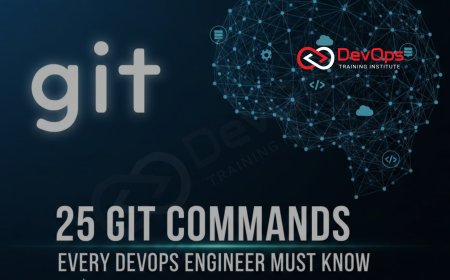
Top 20 Git Tricks for Team Success
- Git Clean: Use this to quickly remove untracked files from your working directory, keeping your local environment pristine.
- Git Commit --amend: Perfect for fixing that one small typo in your last commit message before you push to the remote.
- Git Log --graph: Provides a visual representation of your branch and merge history directly in the terminal for better context.
- Git Checkshort -s: Shows a summary of commits by author, which is great for seeing who has been working on which parts of the code.
- Git Add -p: Allows you to stage changes in small "hunks," letting you review and commit only the specific lines you want.
- Git Diff --stat: Gives a high level overview of which files have changed and by how much, perfect for a quick pre commit sanity check.
- Git Rebase -i: Master the interactive rebase to squash, reword, and reorder your local history into a clean narrative.
- Git Remote Prune: Cleans up local references to branches that have already been deleted on the remote server.
- Git Checkout -: A quick shortcut to switch back to the previous branch you were working on, saving seconds every time.
- Git Show: Instantly view the changes and metadata for a specific commit to understand what was modified and why.
- Git Branch -m: Rename your local branches easily to better reflect the current status or feature you are working on.
- Git Restore: Quickly undo changes in your working directory or unstage files without using more complex reset commands.
- Git LFS: Use Large File Storage to manage big assets like images or videos without slowing down your core repository operations.
- Git Worktree: Create multiple working directories for the same repository, allowing you to work on two branches simultaneously.
- Git Describe: Find the most recent tag reachable from a commit, which is useful for versioning and automated build scripts.
- Git Grep: Search for specific strings across your entire project history without needing to open every single file.
- Git Maintenance: Run background tasks to optimize your repository and keep it running fast as the project grows over time.
- Git Notes: Add extra information to commits without changing the commit hash itself, useful for attaching build logs or review links.
- Git Submodules: Manage external project dependencies as separate repositories within your main project for better isolation.
- Git Reflog: Your ultimate "undo" button that records every move you make, allowing you to recover almost any lost data.
Adopting these tricks requires a mindset of continuous improvement and a desire to make life easier for your fellow developers. As you integrate these habits into your daily routine, you will find that your continuous synchronization with the team becomes more natural and less prone to errors. It is also worth exploring how these Git workflows can be optimized for specific cloud architecture patterns where infrastructure code is also managed through version control. The goal is to create a seamless flow of information and code that supports the entire organization's technical goals.
Conclusion on Git Collaboration Mastery
In conclusion, mastering these twenty Git tricks is not just about becoming a technical expert; it is about becoming a better teammate. By focusing on clean history, proactive quality control, and efficient debugging, you contribute to a culture of excellence and transparency. Git is the glue that holds modern DevOps teams together, and knowing how to use it effectively is a fundamental skill for any professional in twenty twenty six. As you continue to refine your version control habits, remember that the ultimate goal is to spend less time fighting with the tool and more time building great features for your users.
Looking ahead, the role of AI augmented devops will likely introduce even more automation into how we manage our Git repositories. From automated branch cleanup to AI driven merge conflict resolution, the tools will continue to evolve. However, the foundational principles of good collaboration—clarity, communication, and consistency—will remain the same. By embracing these tricks today, you are setting yourself and your team up for success in an increasingly complex digital world where the ability to collaborate effectively is the primary driver of innovation and quality. Use cluster states and GitOps to take your version control mastery to the next level.
Frequently Asked Questions
What is the benefit of squashing commits before a merge?
Squashing combines several small commits into one logical change, making the project history cleaner and easier for others to review later.
How does Git stash differ from a temporary commit?
Stashing stores changes in a separate area without creating a commit hash, keeping your branch history clean while you context switch tasks.
When should I use rebase instead of merge?
Use rebase to maintain a linear history on your local branch, but use merge for public branches to preserve the collaborative context.
What is a Git hook and why use it?
A Git hook is a script that runs during events like committing, helping automate tasks like linting and security checks locally and instantly.
Can I recover a branch I accidentally deleted?
Yes, you can use the git reflog command to find the commit hash of the deleted branch and restore it safely and quickly.
What does cherry-picking a commit actually do?
Cherry-picking applies the exact changes from a specific commit in one branch to another branch without merging the entire history of work.
How can I find out who changed a specific line of code?
You use the git blame command, which shows the author, date, and commit hash for every single line in a specific file.
What is the purpose of Git LFS?
Git LFS replaces large files with text pointers inside Git, storing the actual file content on a separate server to keep repos fast.
How do I fix a typo in my most recent commit?
You can use the git commit --amend command to modify the last commit's message or content before you push it remote.
Why is it important to use semantic commit messages?
Semantic messages provide clear context about the type of change, making it easier for automated tools and humans to parse the history.
What is the difference between git fetch and git pull?
Fetch downloads the latest changes from the remote without merging them, while pull downloads and immediately attempts to merge them into your branch.
How does Git bisect speed up debugging?
It uses a binary search algorithm to narrow down hundreds of commits to the single one that introduced a bug very efficiently.
What is a Git worktree and why use it?
A worktree allows you to have multiple branches checked out in different folders simultaneously, which is great for multi tasking and testing.
Can I automate Git repository maintenance?
Yes, Git has a built in maintenance command that can run tasks like garbage collection in the background to keep the repo optimized.
How do Git submodules help in large projects?
Submodules allow you to keep separate projects within a main repository while maintaining their own version history and independent development cycles for teams.
What's Your Reaction?
 Like
0
Like
0
 Dislike
0
Dislike
0
 Love
0
Love
0
 Funny
0
Funny
0
 Angry
0
Angry
0
 Sad
0
Sad
0
 Wow
0
Wow
0






![100+ Azure DevOps Interview Questions and Answers [Updated 2025]](https://www.devopstraininginstitute.com/blog/uploads/images/202509/image_140x98_68c40aa9a3834.jpg)






![Future Scope of DevOps Careers in Pune [Updated 2025]](https://www.devopstraininginstitute.com/blog/uploads/images/202510/image_140x98_68e3a84652312.jpg)