




![Kong Interview Preparation Guide [2025]](https://www.devopstraininginstitute.com/blog/uploads/images/202509/image_430x256_68dbb95326997.jpg)




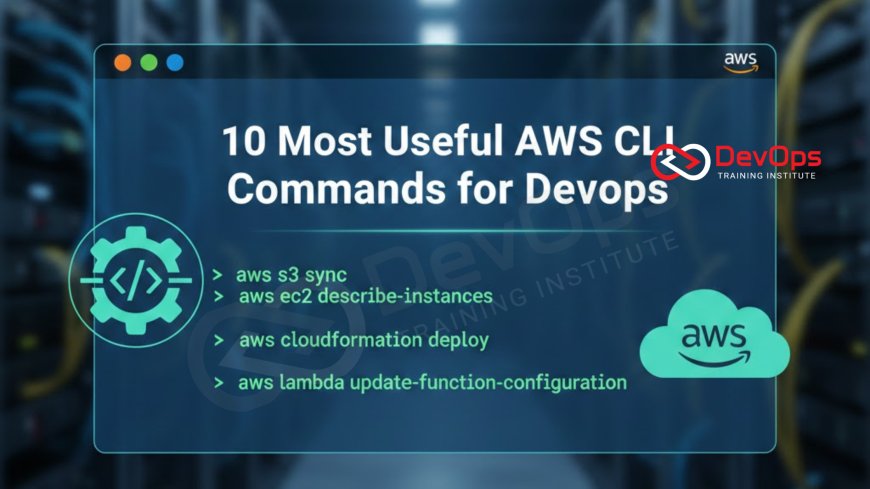
10 Most Useful AWS CLI Commands for DevOps
Unlock the true potential of cloud automation with our guide on the 10 most useful AWS CLI commands for DevOps professionals. This comprehensive article covers essential commands for managing EC2 instances, S3 buckets, and IAM policies efficiently from your terminal. Learn how to streamline your infrastructure management, improve deployment speed, and enhance your operational workflows by mastering these powerful command line tools designed for modern cloud engineering and site reliability tasks today.
Introduction to the AWS Command Line Interface
The Amazon Web Services Command Line Interface is an open source tool that enables you to interact with AWS services using commands in your command line shell. For any engineer working in a modern environment, the ability to control infrastructure without relying on the graphical user interface is a game changer. It allows for faster navigation, easier troubleshooting, and the ability to script complex sequences of actions that would take much longer to perform manually through the console.
In this guide, we will explore ten of the most impactful commands that every professional should have in their toolkit. These commands are selected based on their frequency of use in real world scenarios, ranging from simple resource listing to complex synchronization and automation tasks. By mastering these terminal based actions, you can significantly increase your productivity and reduce the likelihood of human error during critical infrastructure updates or maintenance windows in a high stakes production environment.
Streamlining Resource Management with EC2 Commands
The Elastic Compute Cloud service is the heart of many cloud infrastructures. Managing virtual servers efficiently is a top priority for operations teams. The command line provides instant access to the status of your instances, allowing you to filter by tags, states, or regions. This is particularly useful when you need to quickly identify which servers are running or which ones require urgent security patches or configuration updates during a scheduled maintenance period.
Using commands like describe instances with specific filters allows you to gather data about your fleet in a readable format like JSON or text. This information is vital for platform engineering as it helps in building automated dashboards or reporting tools. Instead of clicking through multiple pages in the browser, a single command can return the public IP addresses or instance IDs of your entire development environment, saving you valuable time and effort every single day.
Mastering Data Handling with S3 Sync and Copy
Simple Storage Service is the backbone of data storage in the cloud. Whether you are managing backups, hosting static assets, or storing application logs, the ability to move data quickly is essential. The sync command is one of the most powerful tools available because it compares source and destination folders and only uploads or downloads the files that have changed. This makes it incredibly efficient for deploying website updates or performing regular data migrations.
Beyond simple transfers, the command line allows you to manage bucket policies and permissions with ease. This ensures that your data remains secure while still being accessible to the services that need it. Integrating these commands into your automation scripts supports a solid gitops workflow where your data state is as predictable as your code state. It removes the manual burden of dragging and dropping files and provides a reliable, repeatable way to manage your storage assets at any scale.
Enhancing Security and Access Control with IAM
Identity and Access Management is the gatekeeper of your cloud environment. Managing users, groups, and roles via the terminal is much more efficient than navigating the complex IAM console. You can quickly list access keys, update passwords, or check which policies are attached to a specific role. This speed is critical when you need to audit permissions or revoke access during an emergency security event to protect your organization's sensitive data and resources.
Automating IAM tasks is a key component of how devsecops ensures that the principle of least privilege is followed consistently. By using the command line to create and assign roles, you reduce the risk of creating overly permissive accounts. You can also script the rotation of access keys, which is a security best practice that is often neglected when performed manually. These commands allow you to build a secure foundation for your infrastructure that scales effortlessly as your team and projects grow over time.
Table: Top AWS CLI Commands and Their Benefits
| Command Category | Primary Command | DevOps Use Case | Key Productivity Benefit |
|---|---|---|---|
| Configuration | aws configure | Setting up credentials and regions. | Quick entry point for all CLI tasks. |
| Storage | aws s3 sync | Synchronizing local and remote directories. | Efficient, incremental data transfers. |
| Computing | aws ec2 describe-instances | Listing and filtering server status. | Rapid fleet visibility and auditing. |
| Security | aws iam list-users | Auditing user accounts and permissions. | Centralized access control management. |
| Networking | aws ec2 describe-vpcs | Checking network configurations. | Fast troubleshooting of connectivity issues. |
Monitoring Performance with CloudWatch Logs
Understanding what is happening inside your applications is the first step toward maintaining reliability. The CloudWatch logs commands allow you to tail log groups directly from your terminal, similar to how you would watch a file on a local Linux server. This is incredibly helpful when debugging a failing Lambda function or checking why an EC2 instance is returning errors. You can filter logs by time or specific keywords to find the exact moment a problem occurred.
This capability is a fundamental part of modern observability strategies. By being able to search and stream logs without leaving your command line, you can resolve incidents much faster. You can also script the creation of log alarms, ensuring that your team is notified automatically if error rates exceed a certain threshold. These commands bridge the gap between raw data and actionable insights, making it much easier to keep your services running smoothly for your end users.
Financial Governance and Cloud Spend Visibility
As organizations grow, managing the cost of cloud services becomes a major challenge for engineering teams. The AWS CLI provides access to billing and cost explorer data, allowing you to check your daily spend and identify expensive resources. By automating the collection of this data, you can build custom reports that help the business understand where the budget is being allocated and where savings can be made through optimization.
Integrating these commands into your workflow is a core practice of finops which aims to balance speed and cost efficiency. For example, you can write a script that identifies unattached storage volumes or idle instances and shuts them down automatically. This proactive approach to cost management ensures that you are only paying for the resources you actually need, allowing you to invest more of your budget into innovation rather than wasted infrastructure capacity every month.
Resilience Testing and Fault Injection
Building a resilient system requires more than just good code; it requires a system that can handle failure gracefully. The AWS CLI allows you to simulate various failure scenarios, such as stopping instances or inducing network latency, to see how your application responds. This proactive testing helps you identify hidden weaknesses in your architecture before they cause real world problems for your customers during a major outage or traffic spike.
Performing chaos engineering experiments using the command line ensures that your system remains robust even under extreme stress. You can automate these experiments to run regularly, verifying that your auto scaling groups and load balancers are working as expected. This disciplined approach to reliability builds confidence within the team and ensures that your infrastructure is truly battle tested and ready for the unpredictable nature of the modern digital landscape where downtime is not an option.
Automating Continuous Deployment Workflows
The final goal of any DevOps team is to deliver high quality code to production as fast as possible. The AWS CLI plays a vital role in this process by allowing you to trigger builds, update Lambda functions, and manage container deployments from within your CI and CD pipelines. This automation ensures that the deployment process is consistent, repeatable, and less prone to the errors that occur when steps are performed manually by different engineers.
- Scripts can automatically update a Lambda function code by pointing to a new zip file in an S3 bucket.
- You can use the CLI to register new task definitions for your ECS clusters during a rollout.
- Automation can handle the invalidation of CloudFront caches to ensure users see the latest version of your site.
- Commands allow you to toggle feature flags or environment variables without a full redeploy of the application.
By leveraging these commands, you can implement a why is shift left testing a critical strategy for faster delivery approach. This means testing your infrastructure and code changes earlier in the lifecycle, often directly from your terminal or pipeline. This reduces the "blast radius" of potential bugs and ensures that your production environment remains stable. Mastering these automated deployment steps is the key to achieving the high velocity and reliability that modern software organizations demand in today's competitive and fast moving market.
Conclusion
The AWS CLI is much more than just a convenience; it is a fundamental tool for any professional looking to master the art of cloud automation. We have explored ten of the most useful commands that help manage computing, storage, security, and monitoring with unmatched speed and precision. From the simple listing of resources to the complex synchronization of data and the proactive testing of system resilience, these commands empower you to build a more efficient and reliable infrastructure. By integrating these terminal based actions into your daily routines and automation scripts, you can reduce manual toil, minimize human error, and focus on the strategic work that drives your business forward. As the AWS ecosystem continues to expand, the ability to control it from the command line will remain an essential skill. Start by mastering these basics, and you will soon find yourself building sophisticated automated systems that keep your services running smoothly and securely at any scale. The journey toward operational excellence begins with a single command in your terminal.
Frequently Asked Questions
How do I install the AWS CLI?
You can download and install the AWS CLI from the official Amazon website for Windows, macOS, and Linux operating systems easily.
What is the purpose of the 'aws configure' command?
This command sets up your AWS credentials, default region, and output format so the CLI can interact with your account securely.
Can I manage multiple AWS accounts with the CLI?
Yes, you can use named profiles to switch between different accounts and credentials by adding the profile flag to your commands.
Is the AWS CLI free to use?
The tool itself is free to download and use, but the commands you run may incur costs for the services provisioned.
How do I filter the output of a command?
You can use the query flag with JMESPath syntax to extract specific data from the JSON output returned by the AWS CLI.
What is the difference between 'cp' and 'sync' in S3?
The cp command copies individual files, while sync compares directories and only transfers the files that are different or new.
How can I tail logs from the command line?
You can use the 'aws logs tail' command to stream log events from a CloudWatch log group directly into your terminal window.
Can I run AWS CLI commands from a script?
Yes, you can include AWS commands in Bash, Python, or PowerShell scripts to automate complex infrastructure tasks and deployment pipelines effectively.
How do I check the version of my AWS CLI?
Simply type 'aws --version' in your terminal to see the current version of the installed software and its dependencies easily.
What is the benefit of using the CLI over the console?
The CLI is much faster for repetitive tasks, allows for automation through scripting, and provides more powerful filtering and output options.
Is there a dry-run option for commands?
Many AWS commands, especially in EC2, support a dry-run flag that checks for permissions without actually performing the requested action.
How do I get help for a specific command?
You can add 'help' to the end of any command or sub-command to see a detailed manual and list of available flags.
Can I manage Lambda functions via the CLI?
Yes, you can create, update, and invoke Lambda functions, as well as manage their triggers and environment variables using CLI commands.
How do I secure my CLI credentials?
Never share your credentials file and consider using IAM roles or short-lived session tokens for enhanced security when running CLI commands.
What is a 'wait' command in AWS CLI?
Wait commands allow your script to pause until a specific resource reaches a certain state, such as an EC2 instance becoming 'running'.
What's Your Reaction?
 Like
0
Like
0
 Dislike
0
Dislike
0
 Love
0
Love
0
 Funny
0
Funny
0
 Angry
0
Angry
0
 Sad
0
Sad
0
 Wow
0
Wow
0


![100+ Azure DevOps Interview Questions and Answers [Updated 2025]](https://www.devopstraininginstitute.com/blog/uploads/images/202509/image_140x98_68c40aa9a3834.jpg)






![Future Scope of DevOps Careers in Pune [Updated 2025]](https://www.devopstraininginstitute.com/blog/uploads/images/202510/image_140x98_68e3a84652312.jpg)