
























![Kong Interview Preparation Guide [2025]](https://www.devopstraininginstitute.com/blog/uploads/images/202509/image_430x256_68dbb95326997.jpg)












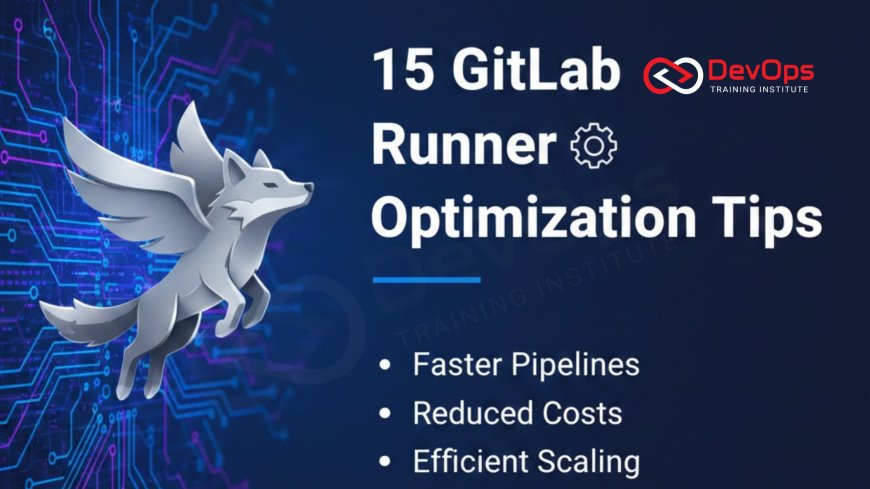
15 GitLab Runner Optimization Tips
Discover the definitive guide to fifteen essential GitLab Runner optimization tips designed to supercharge your CI CD pipelines for twenty twenty six. As development cycles accelerate, ensuring your runners are operating at peak efficiency is critical for reducing build times, lowering cloud infrastructure costs, and improving the overall developer experience. This comprehensive analysis covers advanced configurations such as distributed caching with S3, Docker autoscaling on Kubernetes, and strategic job parallelization. Learn how to eliminate bottlenecks in your automated workflows, optimize resource allocation across your fleet, and leverage the latest GitOps trends to maintain a scalable and high performance engineering environment today.
Introduction to GitLab Runner Performance
In the modern software development landscape, the GitLab Runner is the engine that drives your entire continuous integration and delivery process. It is the application responsible for picking up jobs from GitLab and executing them on a variety of platforms, from local servers to massive cloud clusters. However, as teams grow and pipelines become more complex, runners can often become a major bottleneck, leading to long wait times and delayed releases. Optimizing these runners is not just a technical luxury; it is a necessity for maintaining the high velocity required by top tier engineering organizations in twenty twenty six.
A well optimized runner fleet ensures that developers receive rapid feedback on their code changes, allowing them to catch bugs early and iterate faster. This involves a combination of smart configuration, efficient resource management, and the use of modern cloud native features like autoscaling and distributed caching. By focusing on these fifteen optimization tips, you can transform your CI CD environment into a streamlined powerhouse that supports your business goals while keeping operational costs under control. Understanding the nuances of how runners interact with your infrastructure is the first step toward achieving true operational excellence.
Implementing Distributed Caching with S3
One of the most effective ways to speed up your pipelines is to implement distributed caching using an S3 compatible storage backend. By default, GitLab Runner stores caches locally on the machine where the job is executed, which means that if a job runs on a different runner next time, it cannot access the previous cache. By moving your cache to a central location like Amazon S3 or MinIO, all runners in your fleet can share the same dependencies, such as Node.js modules or Maven libraries. This significantly reduces the time spent downloading the same files over and over again from the internet.
To set this up, you need to configure the [runners.cache] section in your config.toml file with your bucket details and credentials. This allows you to scale your runner fleet horizontally without losing the performance benefits of local caching. It is particularly useful for organizations using Docker autoscaler or Kubernetes executors where pods are ephemeral and destroyed after every job. By ensuring that your cluster states remain synchronized with a central cache, you provide a consistent and fast experience for every developer on the team, regardless of which runner handles their specific job. This strategy is a cornerstone of modern architecture patterns for scalable DevOps.
Maximizing Efficiency with Job Parallelization
Parallelization is a powerful technique that allows you to run multiple parts of a pipeline simultaneously rather than waiting for them to complete one by one. In GitLab, you can use the "parallel" keyword in your CI configuration to split a single job into multiple smaller tasks that run at the same time. For example, if you have a massive suite of unit tests, you can split them into five separate jobs that each run a subset of the tests. This can reduce the total execution time of that stage from thirty minutes down to just six or seven minutes, providing nearly instant feedback to the developer.
When implementing parallelization, it is important to balance the speed gains with the additional resource consumption on your runners. You must ensure that your global "concurrent" setting in the runner configuration is high enough to accommodate the sudden spike in jobs. Using ChatOps techniques to monitor your pipeline status in real time can help you identify which stages would benefit most from further parallelization. By constantly refining these release strategies, you can maintain a high pace of delivery without overwhelming your infrastructure. This approach not only saves time but also improves the overall reliability of your builds by isolating failures to specific subsets of your code.
Leveraging Docker Autoscaling for Elastic Demand
As your organization scales, the demand for CI CD resources will fluctuate throughout the day, often peaking during mid afternoon hours. A static runner fleet is either too small to handle the peak load or too expensive because it remains idle during off hours. The Docker Autoscaler executor solves this by dynamically spinning up and down virtual machine instances based on the number of pending jobs in your queue. This ensures that you always have exactly the right amount of compute power available, minimizing wait times for developers while significantly reducing your cloud bill by only paying for what you use.
This elastic model is particularly effective when used with fleeting plugins that support major cloud providers like AWS, Azure, and Google Cloud. You can configure a specific number of idle instances to be kept ready for immediate use, while the rest are created on demand. This hybrid approach provides the perfect balance between performance and cost efficiency. For teams undergoing significant cultural change during their DevOps journey, moving to an autoscaled model demonstrates a commitment to modern, data driven infrastructure management. It allows your operations team to focus on higher level tasks instead of manually managing server capacity for every new project that joins the platform.
Core GitLab Runner Optimization Metrics
| Optimization Area | Technical Tip | Expected Speed Gain | Complexity |
|---|---|---|---|
| Git Operations | Use Shallow Clones | High (for large repos) | Low |
| Dependency Management | Distributed S3 Cache | Medium to High | Medium |
| Job Execution | Parallel Matrix Builds | Extreme | Medium |
| Docker Builds | Use BuildKit Backend | Medium | Low |
| Scaling | Kubernetes Autoscaling | Cost / Scale efficiency | High |
Using Git Shallow Clones to Save Time
For large repositories with long histories, the cloning process can sometimes take several minutes, wasting valuable time at the start of every job. By default, GitLab Runner performs a full clone, downloading every single commit ever made to the project. You can optimize this by setting the GIT_DEPTH variable to a small number, such as one. This creates a "shallow clone" that only downloads the most recent version of the code, which is usually all that is needed for building and testing. This simple change can shave significant time off your pipeline, especially for projects that have been active for many years.
Shallow cloning is particularly effective when combined with continuous synchronization strategies in a GitOps environment. It ensures that your runners are always working with the latest state without the overhead of historical data that isn't relevant to the current task. However, be aware that certain tools like "git describe" or automated versioning scripts might require a deeper history to function correctly. In those cases, you can adjust the depth to a slightly higher value like fifty to find the right balance between speed and functionality for your specific needs. It is one of the easiest "quick wins" for any team looking to improve their runner performance immediately.
Optimizing Artifact Expiration and Storage
Artifacts are essential for passing data between stages of a pipeline, such as a compiled binary or a set of test reports. However, if not managed correctly, they can quickly consume massive amounts of storage space in your GitLab instance, leading to performance issues and higher costs. By default, artifacts often stay around for thirty days, which is usually much longer than necessary. You should define a short "expire_in" period for all non essential artifacts, such as one hour or one day. This ensures that your storage remains clean and that only the most important releases are kept for the long term.
To further optimize storage, you can use the "dependencies" keyword to control which jobs fetch which artifacts. By default, every job in a later stage fetches all artifacts from every job in an earlier stage, which can lead to unnecessary network traffic and slow job startups. By explicitly listing only the artifacts a job needs, you can reduce this overhead and make your pipeline more efficient. This practice is vital for maintaining a healthy and fast environment, especially when dealing with admission controllers and security scans that might generate large reports. It is a key part of the incident handling process to have access to recent data without being buried in outdated files.
Essential Tips for GitLab Runner Mastery
- Use Specific Runners: Assign runners to specific projects using tags to avoid resource contention and ensure that high priority builds always have a dedicated agent available.
- Pin Image Versions: Always use specific tags for your CI images (e.g., node:20.10.0) instead of "latest" to ensure build consistency and avoid unexpected failures when the base image updates.
- Optimize Pull Policies: Use the "if-not-present" pull policy for Docker images to prevent the runner from re-downloading the same image every time a job starts on the same machine.
- Implement Pre-build Scripts: Use the "before_script" section to handle common environment setup tasks once, rather than repeating them in every individual job script.
- Switch to Containerd: Consider using the containerd runtime for your runners to reduce the memory footprint and improve performance compared to the traditional Docker daemon.
- Enable BuildKit: Use the Docker BuildKit backend for your image builds to take advantage of parallel layer processing and more efficient caching mechanisms.
- Monitor with Prometheus: Use the embedded Prometheus metrics in GitLab Runner to track job durations and identify which runners are the most heavily utilized in your fleet.
- Use Resource Groups: Implement resource groups to prevent concurrent jobs from accessing the same physical resource, such as a hardware device or a specific database instance.
- Update Runners Regularly: Keep your GitLab Runner software updated to the latest version to take advantage of performance improvements and security patches provided by the GitLab team.
- Choose the Right Executor: Evaluate whether the Shell, Docker, or Kubernetes executor is the best fit for your specific workload and infrastructure requirements.
- Leverage AI Tools: Explore AI augmented devops capabilities to automatically analyze your pipeline logs and suggest further optimizations based on historical data.
- Apply Continuous Verification: Use continuous verification to ensure that your runner configurations are working as expected and providing the intended performance benefits in real time.
By systematically applying these tips, you can build a robust and highly performant CI CD infrastructure that serves as a competitive advantage for your organization. It is important to treat your runners as a critical part of your product's technical foundation, requiring regular maintenance and optimization. As the industry moves toward more automated and intelligent systems, staying ahead of the curve with your runner fleet will ensure that your team remains productive and your releases stay on schedule. The goal is to create a "paved road" where developers can focus on writing code while the underlying platform handles the complexity of testing and deployment with absolute efficiency.
Conclusion: Building a Fast and Reliable Fleet
In conclusion, GitLab Runner optimization is a multifaceted effort that requires attention to detail across your entire technical stack. From the simple efficiency of shallow clones to the complex elasticity of autoscaled cloud clusters, every improvement contributes to a faster and more reliable development experience. By adopting a mindset of continuous improvement and leveraging modern features like distributed caching and parallelization, you can ensure that your runners are always a source of speed rather than a cause of delay. This technical maturity is what enables modern teams to deliver high quality software at the pace of the global market.
As you move forward, continue to experiment with new tools and configurations to find the perfect balance for your specific needs. Use data from your monitoring systems to guide your optimization efforts and share your successes with the wider community to foster a cultural change that values engineering excellence. The future of DevOps is increasingly automated and intelligent, and by mastering your GitLab Runners today, you are positioning your organization for long term success in twenty twenty six and beyond. A fast pipeline is the foundation of a happy and productive engineering team, so start optimizing your runners now to reap the benefits of a truly modern CI CD environment.
Frequently Asked Questions
What is the quickest way to speed up a GitLab Runner job?
The quickest way is usually to enable Git shallow cloning by setting the depth to one, which reduces the time spent downloading repository history.
Why should I use distributed caching with my GitLab Runners?
Distributed caching allows multiple runners to share the same dependencies, ensuring that jobs run fast regardless of which runner they are assigned to.
What is the difference between caching and artifacts in GitLab?
Caches are for speeding up jobs by storing dependencies, while artifacts are for passing build results between stages of the same pipeline securely.
When should I use the Kubernetes executor for my runners?
Use the Kubernetes executor when you want to run jobs in an isolated, autoscaled environment that can handle massive fluctuations in demand automatically.
How does the Docker Autoscaler save money on cloud costs?
It automatically spins down idle virtual machines when no jobs are pending, ensuring you only pay for the compute resources you actually use.
What is a resource group and why do I need it?
A resource group limits the number of concurrent jobs that can access a specific shared resource, preventing conflicts and potential system corruption during builds.
Can I run multiple GitLab Runner managers on the same server?
Yes, you can register multiple runners within a single configuration file, each with its own specific tags and executor settings to handle different tasks.
Is it possible to optimize Docker image builds within GitLab CI?
Yes, by using the BuildKit backend and pinning small base images like Alpine, you can significantly reduce the time and resources needed for builds.
How do I know if my runners are underpowered for my workload?
Monitor the CPU and memory usage of your runners during peak times; if they are constantly hitting limits, it is time to scale up.
What is the benefit of pinning Docker image versions in pipelines?
Pinning ensures that your build environment is reproducible and prevents unexpected failures caused by updates to the "latest" tag of a base image.
Can AI help in optimizing my GitLab Runner configurations?
Modern AI tools can analyze your pipeline performance data and suggest specific configuration changes to reduce build times and improve resource allocation efficiency.
How often should I clear my runner caches?
You should clear caches manually if you suspect corruption or when there is a major change in your project's dependency structure that requires clean builds.
What are tags and how do they help with runner management?
Tags allow you to route specific jobs to specific runners, ensuring that specialized tasks always have access to the hardware and environment they require.
Does shallow cloning break any specific Git commands?
Commands that need history, like "git log" or "git describe", may not work as expected with a shallow clone unless the depth is sufficiently large.
What is the role of the check_interval in runner configuration?
The check_interval defines how often the runner manager polls GitLab for new jobs; setting it lower makes jobs start faster but increases server load.
What's Your Reaction?
 Like
0
Like
0
 Dislike
0
Dislike
0
 Love
0
Love
0
 Funny
0
Funny
0
 Angry
0
Angry
0
 Sad
0
Sad
0
 Wow
0
Wow
0






![100+ Azure DevOps Interview Questions and Answers [Updated 2025]](https://www.devopstraininginstitute.com/blog/uploads/images/202509/image_140x98_68c40aa9a3834.jpg)






![Future Scope of DevOps Careers in Pune [Updated 2025]](https://www.devopstraininginstitute.com/blog/uploads/images/202510/image_140x98_68e3a84652312.jpg)